
To check your Windows version, press Win + R, type winver, and press Enter. This displays your Windows edition, version number, and build number in a popup window. Alternatively, go to Settings → System → About (Windows 11) or Settings → System → About (Windows 10) to view detailed system information including OS version, device specifications, and Windows edition.
Introduction
Knowing your Windows version is essential for security updates, software compatibility, and troubleshooting. Your Windows installation has three key identifiers: the version (like 22H2), the build number (like 19045), and the edition (Home, Pro, Server). Home users need this information when upgrading software, system administrators rely on it when managing remote servers, and developers use it to test compatibility across Windows versions.
This guide shows 6 methods to check your Windows version — from beginner-friendly GUI clicks to advanced PowerShell automation that works on local machines and remote Windows RDP servers.
Method 1: Using Windows Settings (Easiest for Beginners)
The Settings app provides the most user-friendly way to check your Windows version.
Windows 11 steps:
- Press Win + I to open Settings
- Click System in the left sidebar
- Scroll down and click About
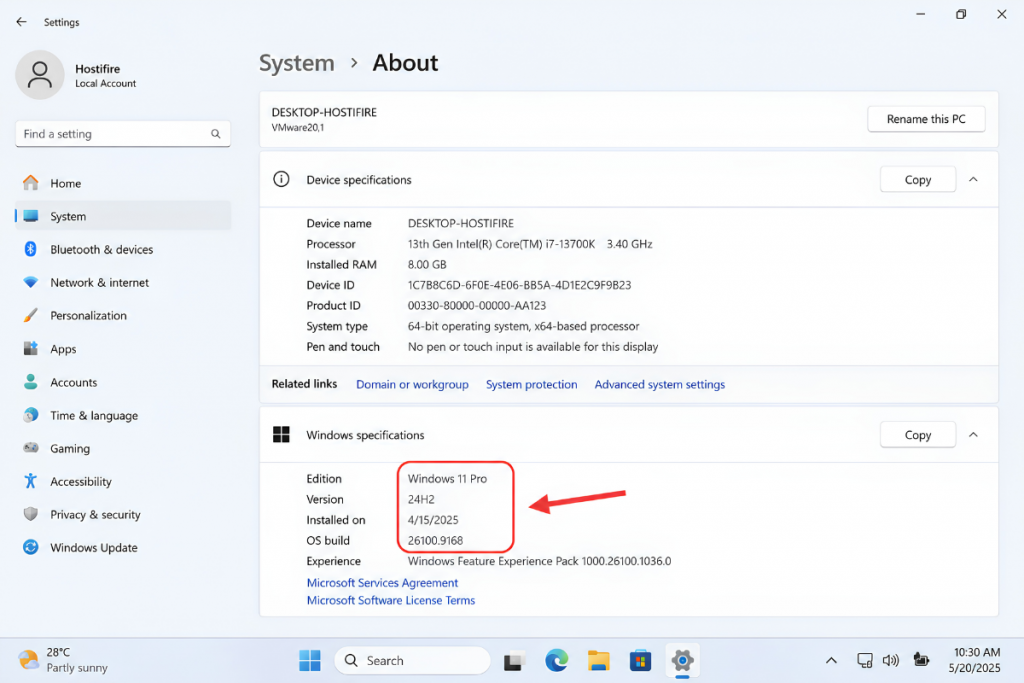
- Under “Windows specifications,” you’ll see:
- Edition (e.g., Windows 11 Pro)
- Version (e.g., 24H2)
- OS build number (e.g., 26100.9168)
Windows 10 steps:
- Press Win + I to open Settings
- Click System
- Click About in the left menu
- Under “Windows specifications,” find your edition, version, and build
What you’ll see: Device name, processor type, installed RAM, system type (64-bit or 32-bit), and complete Windows specifications including the exact build number.
Method 2: Using the Winver Command (Fastest GUI Method)
The winver command is the quickest way to check Windows version without navigating menus.
How to use:
- Press Win + R to open the Run dialog
- Type
winverand press Enter - The “About Windows” dialog appears instantly
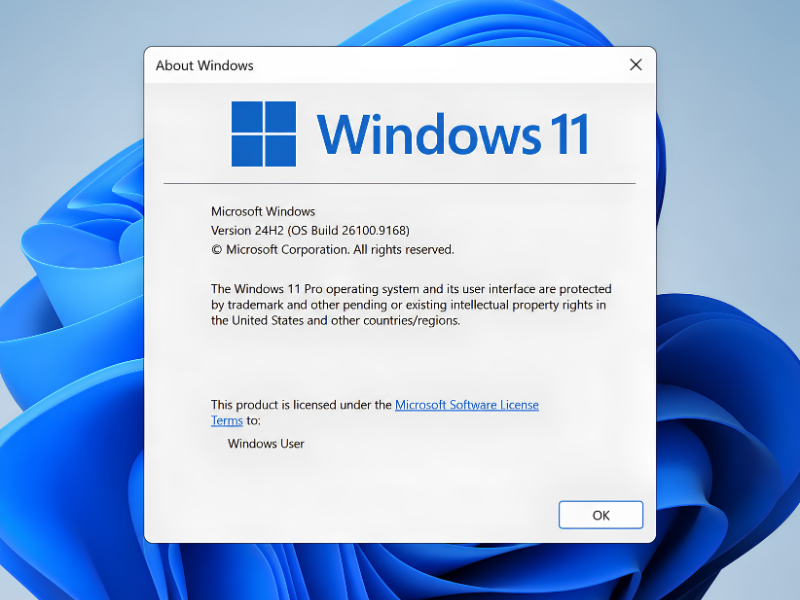
Information shown:
- Windows edition (e.g., Windows 11 Pro)
- Version and build number (e.g., Version 24H2, Build 26100.9168)
- Ownership information
Why this method: Works on all Windows versions back to Windows 95, requires only two keystrokes, and displays information in a clean, simple dialog box. Perfect for quick checks when you don’t need extensive system details.
Method 3: System Information Tool (Most Detailed GUI)
The System Information utility provides comprehensive details beyond just the Windows version.
How to open:
- Press Win + R, type
msinfo32, and press Enter - Or: Click Start, type “System Information,” and click the app
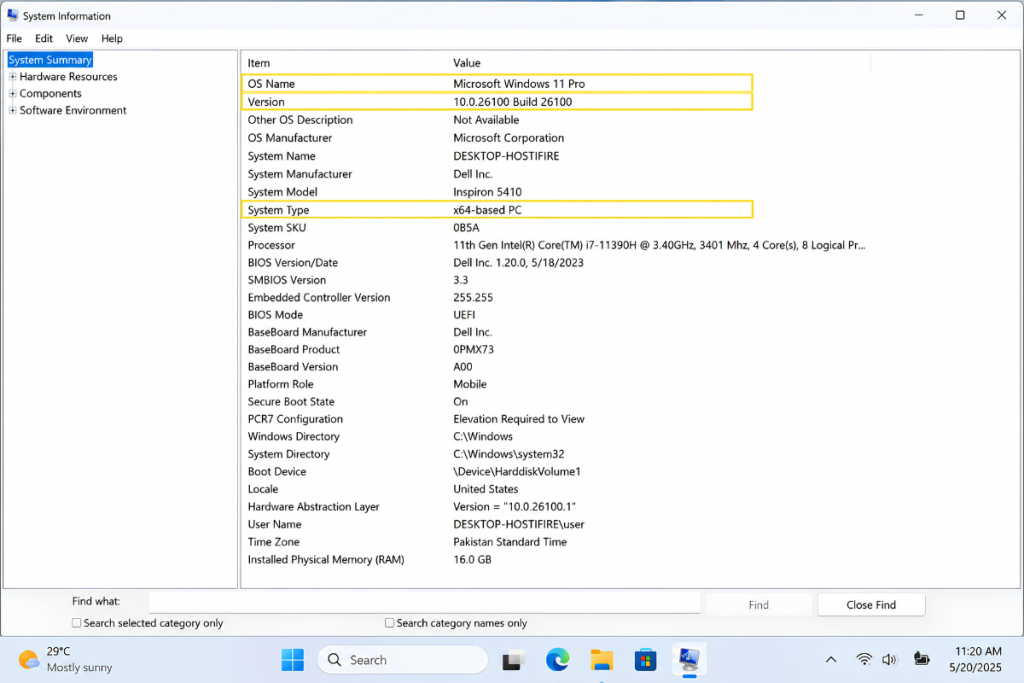
Key information available:
- OS Name: Full Windows edition name (e.g., “Microsoft Windows 11 Pro”)
- Version: Build number (e.g., 10.0.26100 Build 26100)
- System Type: x64-based PC or ARM-based PC
- Processor: CPU model and speed
- Installed Physical Memory (RAM): Total RAM installed
- BIOS Version/Date: Firmware information
Use case: When you need comprehensive system details for technical support, hardware diagnostics, or verifying system requirements for software installation. This tool also shows DirectX version, virtual memory settings, and hardware resources.
Method 4: Using Command Prompt (For Scripting & Automation)
Command Prompt offers text-based version checking that’s ideal for batch scripts and remote management.
How to use:
- Press Win + X and select Command Prompt or Terminal
- Run one of these commands:
Option A: systeminfo command
systeminfo | findstr /B /C:"OS Name" /C:"OS Version"
Output:
OS Name:                   Microsoft Windows 11 Pro
OS Version:                10.0.26100 N/A Build 26100
Option B: wmic command (legacy)
wmic os get Caption,Version,BuildNumber,OSArchitecture
Output:
BuildNumber  Caption                  OSArchitecture  Version
26100        Microsoft Windows 11 Pro 64-bit          10.0.26100
Explanation:
Caption: Full Windows edition nameVersion: Windows NT version (always 10.0 for Windows 10/11)BuildNumber: Specific compilation build (most important for identifying updates)OSArchitecture: 32-bit or 64-bit system
Use case: Remote server management, batch scripts that need to verify Windows version before executing commands, and automation scenarios where you need machine-readable output.
[Screenshot placeholder: Command Prompt showing systeminfo output with version details — delegate to graphics_designer]
Method 5: Using PowerShell (Advanced / System Admins)
PowerShell provides the most powerful and flexible way to query Windows version information, especially for managing multiple systems.
How to use:
- Press Win + X and select Windows PowerShell or Terminal
- Use one of these methods:
Method 5a: Get-ComputerInfo (most comprehensive)
Get-ComputerInfo | Select-Object WindowsVersion, OsHardwareAbstractionLayer
Output:
WindowsVersion OsHardwareAbstractionLayer
-------------- --------------------------
2009           10.0.26100.9168
According to Microsoft’s PowerShell documentation, Get-ComputerInfo returns a consolidated object of system and operating system properties.
Method 5b: Get-CimInstance (lightweight query)
Get-CimInstance Win32_OperatingSystem | Select-Object Caption, Version, BuildNumber, OSArchitecture
Output:
Caption                  Version        BuildNumber OSArchitecture
-------                  -------        ----------- --------------
Microsoft Windows 11 Pro 10.0.26100    26100       64-bit
Method 5c: Registry query (fastest)
Get-ItemProperty "HKLM:\SOFTWARE\Microsoft\Windows NT\CurrentVersion" | Select-Object ProductName, DisplayVersion, CurrentBuild
Output:
ProductName              DisplayVersion CurrentBuild
-----------              -------------- ------------
Windows 11 Pro           24H2           26100
When to use each PowerShell method:
- Get-ComputerInfo: When you need extensive system details (BIOS, RAM, processor, plus OS info)
- Get-CimInstance: For quick, efficient queries in scripts (lower overhead than Get-ComputerInfo)
- Registry query: Fastest method; ideal for simple version checks in automation scripts
Use case: Managing multiple Windows VPS servers, creating inventory reports of Windows versions across your infrastructure, or scripting automated update checks.
[Screenshot placeholder: PowerShell window showing Get-ComputerInfo output — delegate to graphics_designer]
Method 6: Checking Windows Version on Remote Servers / RDP Sessions
For users managing Windows RDP or VPS servers, you can check the Windows version remotely without logging into the desktop.
Using PowerShell Remoting:
Prerequisites:
- WinRM (Windows Remote Management) must be enabled on the target server
- You need administrator credentials for the remote machine
Command:
Invoke-Command -ComputerName SERVER-NAME -ScriptBlock {
    Get-CimInstance Win32_OperatingSystem | Select-Object Caption, Version, BuildNumber
}
Replace SERVER-NAME with your server’s hostname or IP address. You’ll be prompted for credentials.
Output:
Caption                      Version        BuildNumber
-------                      -------        -----------
Microsoft Windows Server 2025 10.0.26100    26100
Alternative: Log into RDP session If you have remote desktop access to your Windows RDP hosting server, log in via RDP and use any of Methods 1-5 above. Hostifire’s $4.99/mo RDP plans include full administrator access, allowing you to use all PowerShell commands and management tools.
Managing multiple VPS/RDP instances: For system administrators managing multiple Windows servers, PowerShell remoting allows you to check versions across your entire fleet without manual logins:
$servers = @("SERVER1", "SERVER2", "SERVER3")
Invoke-Command -ComputerName $servers -ScriptBlock {
    $os = Get-CimInstance Win32_OperatingSystem
    [PSCustomObject]@{
        ServerName = $env:COMPUTERNAME
        Version    = $os.Version
        Build      = $os.BuildNumber
    }
}
Use case: Verifying your hosting provider delivered the correct Windows edition, checking if a remote server needs updates, or auditing Windows Server versions across multiple VPS instances before performing bulk updates.
Understanding Windows Version Numbers: What Do They Mean?
Windows version numbering can be confusing because Microsoft uses multiple identifiers. Here’s what each number means:
| Windows Release | Version Name | NT Version | Build Number |
|---|---|---|---|
| Windows 11 24H2 | 24H2 | 10.0 | 26100 |
| Windows 11 23H2 | 23H2 | 10.0 | 22631 |
| Windows 10 22H2 | 22H2 | 10.0 | 19045 |
| Windows Server 2025 | 2025 | 10.0 | 26100 |
| Windows Server 2022 | 2022 | 10.0 | 20348 |
| Windows Server 2019 | 2019 | 10.0 | 17763 |
Source: Microsoft Windows 11 Release Information and Windows Server Release Info
Why all show “Version 10.0”: Microsoft’s internal versioning kept Windows 10 and Windows 11 both at NT version 10.0 for application compatibility. The build number is the most accurate way to identify your exact Windows version.
Version vs. Build:
- Version name (e.g., 22H2) refers to the feature update release — “22H2” means second half of 2022
- Build number (e.g., 19045) identifies the specific compilation, including all cumulative patches and quality updates
- Think of it like smartphone versions: Version = “iOS 17”, Build = “iOS 17.4.1”
Feature updates vs. quality updates:
- Feature updates arrive annually for Windows 11 (examples: 22H2, 23H2, 24H2) and bring new features
- Quality updates ship monthly as security patches that increment the minor build number (e.g., 26100.9168 → 26100.9296)
Why Checking Your Windows Version Matters
Security patches and end-of-life: Knowing if your Windows version is still supported is critical for security. According to Microsoft’s lifecycle policy, Windows 10 22H2 reaches end of support on October 14, 2025. After this date, Windows 10 will no longer receive security updates, leaving systems vulnerable to exploits. Check your version to determine if you need to migrate to Windows 11.
Software compatibility: Many applications require specific Windows versions or build numbers. Modern software may require Windows 10 version 1809 or later, while some legacy tools only run on older builds. Checking your version prevents installation failures and compatibility issues.
Support and troubleshooting: When contacting technical support (for Windows itself or third-party software), the first question is always “What Windows version and build are you running?” Having this information ready speeds up troubleshooting.
VPS/RDP users: Verifying your purchase If you purchased Windows VPS hosting or a Windows RDP plan, checking the version confirms your provider delivered the edition you paid for. Hostifire’s RDP-1 plan ($4.99/mo) clearly states the Windows edition in the product specification. After provisioning, verify it matches what you ordered.
Frequently Asked Questions
What’s the difference between Windows version and build number?
Version is the feature release identifier (e.g., 22H2 = second half of 2022). Build is the specific compilation number (e.g., 19045) that includes cumulative patches. The version tells you which major feature set you have; the build tells you exactly which security patches and quality updates are installed. Think of it like a car: Version = “2023 model year”, Build = “VIN number identifying the exact production unit.”
How do I check Windows version from BIOS or before Windows loads?
You cannot check the Windows version from BIOS. Version information is stored in the Windows registry and file system, which are only accessible after Windows boots. If Windows won’t boot, you can mount the drive from a bootable USB (using Windows Recovery Environment or Linux live disk), navigate to \Windows\System32\config\, and examine the registry offline — but this is an advanced procedure requiring registry editing tools.
Can I check Windows version without logging in?
No, you must log into Windows to check the version using standard methods. The only exception is PowerShell remoting (Invoke-Command) if WinRM was previously configured — but this still requires credentials and the remote system to be running.
Is my Windows 10 version still supported?
Windows 10 version 22H2 is the final version of Windows 10, and support ends on October 14, 2025, according to Microsoft’s lifecycle page. If you’re running Windows 10, plan to upgrade to Windows 11 or migrate to a supported operating system before this date. Hostifire offers both Windows RDP plans with Windows Server editions and Linux VPS options if you’re exploring alternatives. For guidance on choosing between Windows and Linux hosting, see our guide on Linux VPS vs Windows VPS.
Conclusion
Checking your Windows version is straightforward regardless of your skill level. Use Winver (Win + R → winver) for quick checks, the Settings app for detailed system information, or PowerShell for automation and remote server management. System administrators managing multiple servers benefit from PowerShell remoting to check versions across their infrastructure without manual logins.
The most important identifier is the build number, which tells you exactly which security patches you have installed. Keep your Windows version up to date — especially if you’re running Windows 10, which reaches end of support on October 14, 2025.
Need a Windows VPS or RDP server to practice these methods?
Hostifire’s Windows RDP hosting starts at just $4.99/mo with full administrator access, 99.99% uptime, and 24/7 support. Perfect for developers testing cross-version compatibility, system administrators managing remote servers, forex traders running automated bots, or anyone who needs a reliable Windows environment accessible from anywhere.
RDP-1 Plan Features:
- 1 vCPU, 512 MB RAM, 10 GB SSD storage
- Full administrator access (run PowerShell, modify registry, install software)
- 99.99% uptime guarantee
- 30-day money-back guarantee
- 24/7 expert support
Sources
- Microsoft Learn: Windows 11 Release Information https://learn.microsoft.com/en-us/windows/release-health/windows11-release-information (Windows 11 version numbers, build numbers, and release dates)
- Microsoft Learn: Windows Server Release Information https://learn.microsoft.com/en-us/windows-server/get-started/windows-server-release-info (Windows Server 2025, 2022, 2019 build numbers and lifecycle dates)
- Microsoft Lifecycle Policy: Windows 10 Home and Pro https://learn.microsoft.com/en-us/lifecycle/products/windows-10-home-and-pro (Windows 10 end of support date: October 14, 2025)
- Microsoft PowerShell Documentation: Get-ComputerInfo https://learn.microsoft.com/en-us/powershell/module/microsoft.powershell.management/get-computerinfo (PowerShell cmdlet for retrieving system and OS properties)