As a reseller, you can provide your customers or potential customers with a demo cPanel that allows them to explore and get a feel for what an account will be like. According to cPanel, a demo account has limited permissions to modify files and folders, but it still appears fully functional. This tutorial will guide you through the process of converting a cPanel account into a demo account, which can then be accessed and previewed by anyone interested.
Making a cPanel Account a Demo
- Log into your Web Host Manager (WHM).
- In the left menu, under Account Functions, click Manage Demo Mode.
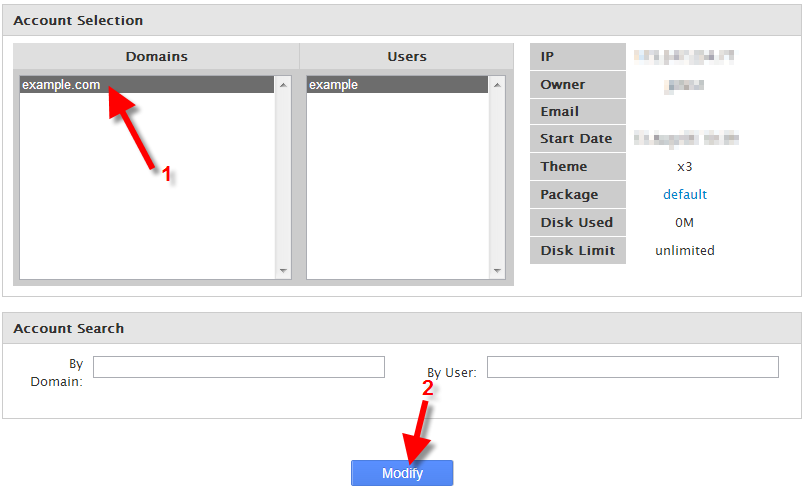
- You will see a list of cPanel accounts you have created. Click the account you want to put in Demo Mode, then click the Modify button.
- You will then see a message stating “Demo mode is currently disabled on example.com,” click the Enable button to turn this cPanel into a Demo. You will then see a message stating “Demo mode has been enabled,” with some additional information, and the cpanel will then be in demo mode.
demo-enabled.png
Congratulations, now you know how to turn a cPanel account into a Demo!